
Things to Consider Before Buying a Used Laptop – Complete Guide 2025
Introduction
Buying a used laptop in 2025 is a significant investment, especially if you need it for study or work. As the new laptops are expensive so most people prefer to buy used or refurbished devices as a more affordable alternative. A well-maintained used laptop can offer nearly the same performance as a new one, but only if you make informed choices. The challenge is that buying second-hand electronics comes with risks as hidden defects, outdated hardware or even scams.
To help you make a smart choice, this guide covers the most important things to consider when buying a used laptop includes hardware, battery, warranty and performance.
- Define Your Purpose and Requirements
Before starting your search, clarify why you need the laptop and what its use is. This prevents you from overspending or buying an underpowered system.
For basic tasks (web browsing, video calls, documents, and email), an older laptop with 4–8GB of RAM and a mid-range processor may be sufficient.
For students: A lightweight model with good battery life and at least 8GB of RAM is ideal for note-taking and multitasking.
For professionals: Aim for a device with at least Intel Core i5, Core i7 or AMD Ryzen 5 with 16GB of RAM and SSD for smooth performance.
For designers or gamers: Look for a laptop with a dedicated graphics card, a high-performance CPU, and better cooling systems.
Knowing your needs helps to narrow down the options and ensures you don’t waste money.
- Inspect the Physical Condition
The outside of a laptop tells a lot about how it has been used. Look carefully at:
Screen: Check for cracks, dead pixels, uneven brightness or flickering.
Keyboard: Ensure all keys are working properly and none is missing or sticking. You can use a keyboard checking utility for key checking.
Trackpad: It should respond smoothly to touch without lag or random jumps.
Hinges: Weak or loose hinges are a sign of wear and could eventually break.
Ports: Test USB, HDMI, charging and headphone ports.
Body: Cracks, dents or bends can indicate rough handling.
Even if the laptop runs well, a poor physical condition can shorten its life.
- Check the Laptop’s Age
Not all laptops age gracefully. Hardware becomes outdated and manufacturers stop providing updates. To check the age:
- Look the model number online to see when it was released.
- Avoid devices older than 5–6 years unless you only need them for very light tasks.
- Confirm that the laptop supports the latest operating systems as Windows 11, macOS updates or Linux.
- Buying the too-old device may save money upfront but can cost more in repairs or upgrades later.
- Check Battery Health and Backup
Laptop batteries degrade over time, and replacements can be costly. To assess battery condition:
- Ask about the average backup time on a full charge. (A healthy laptop should provide at least 3–4 hours).
- Watch for warning messages like “Consider replacing your battery.”
- Observe the laptop overheating while charging.
- If the battery life is poor, consider whether you’re comfortable using it mostly plugged in or if you’ll need to manage for a replacement.
- Storage Type and Capacity
Storage plays a big role in performance.
SSD (Solid State Drive): Faster, more durable and recommended for most users.
HDD (Hard Disk Drive): Cheaper but slow and more prone to failure.
For smooth use, at least 256GB SSD storage is recommended. If the laptop only has an HDD, consider upgrading to SSD for better speed.
- Processor (CPU) and RAM
These two components define how well your laptop will perform.
Processor: For multitasking, aim for Intel i5/i7 or AMD Ryzen 5/7. Older CPUs like Intel i3 or early generations of i5s may feel slow.
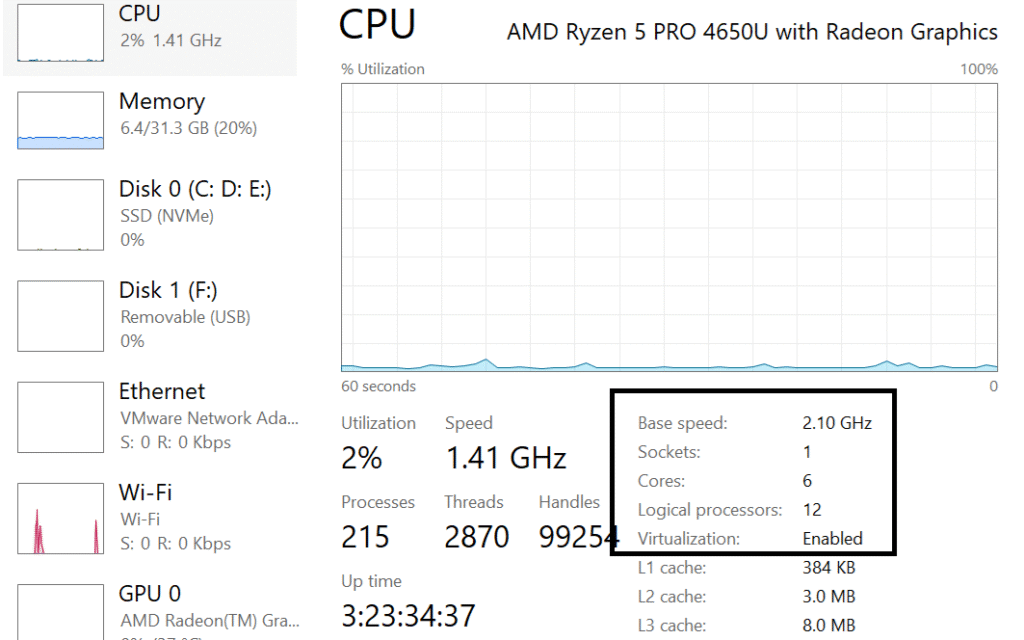
You can check processor cores, performance, base speed, and logical processors from the task manager for a better understanding of CPU statistics.
RAM: 8GB is the minimum for general use, while 16GB is better for multitasking, creative work, or gaming. For a big-picture view of RAM utilization, open the Task Manager and click on Performance, then select the Memory tab. You will see the complete information about memory and its stats.
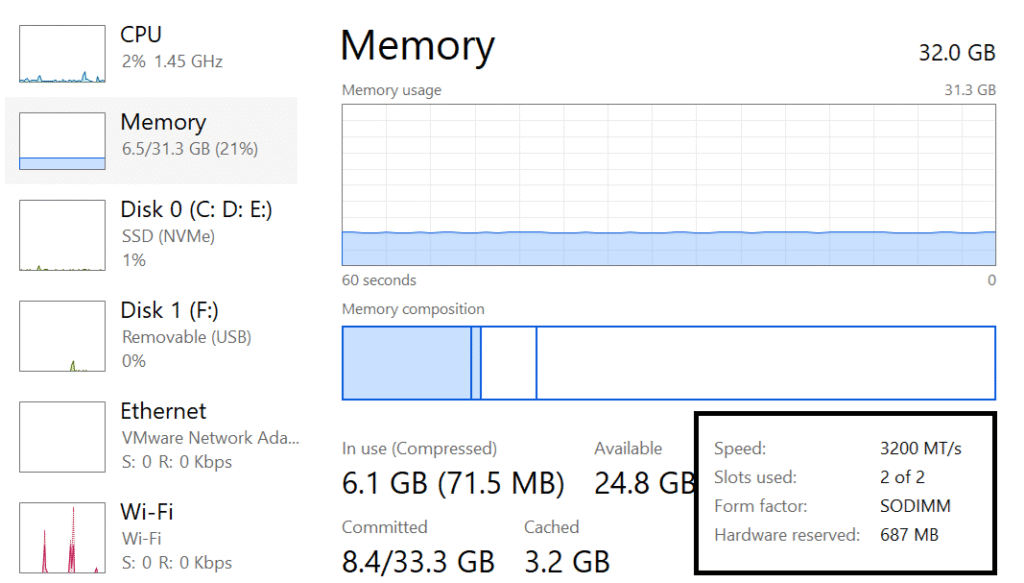
Also, check whether RAM can be upgraded. Some laptops (especially thin ultrabooks and MacBooks) have soldered RAM that cannot be changed.
- Check for Upgrade Options
Buying a used laptop with upgrade potential is a bonus. Look into:
- Whether you can add more RAM.
- If the storage drive is replaceable or expandable.
- Availability of an extra SSD or HDD slot.
If the laptop can be upgraded, you can extend its life and performance in the future.
- Test the Display and Graphics
If you work with design, video editing, or gaming, the display quality and graphics matter. Check:
- Screen resolution (Full HD is standard and 4K for professionals).
- Color accuracy and brightness levels.
- Integrated vs. dedicated GPU (dedicated graphics are necessary for gaming and creative work).
- A poor quality display can strain your eyes and limit productivity.
- Evaluate Software and Operating System
The laptop should have a clean and legal operating system. Be careful with:
Windows laptops: Ensure Windows is genuine and activated.
MacBooks: Make sure it’s not locked to another Apple ID.
Linux laptops: Check the compatibility with hardware like Wi-Fi and graphics.
Also, scan for unwanted software or malware that could affect the performance.
- Test Performance and Overheating
- Run a few tasks to test performance:
- Open multiple browser tabs.
- Play a video.
- Run a basic program like MS Word or Photoshop.
Listen for excessive fan noise or unusual heating. Overheating may suggest dust buildup, a failing fan or serious hardware issues.
- Warranty, Return Policy, and Seller Reputation
- Who you buy from is as important as what you buy.
- If possible, buy from a certified refurbished store that offers a warranty (usually 3–12 months).
- If you buy from an individual, meet in person and test the laptop before paying.
- Check if there is a return policy, especially for online purchases.
- A reputable seller is less likely to hide the defects.
- Price vs. Value
Finally, evaluate whether the deal makes sense. Compare:
- The used price vs. the current new price of similar models.
- Cost of possible repairs (battery, SSD upgrade, or screen replacement).
- The risk of buying too old a device versus buying a new budget laptop.
- As a rule, if a used laptop costs more than 70% of a new model then buying new might be a better choice.
Final Thoughts
A used laptop can be a great investment if wisely chosen. It can save your money while giving you the performance you need for studies, work, or entertainment. The key is careful inspection and research before handing over your money.
Make sure to check the physical condition, battery health, storage type and the processor performance while also confirming whether the device can be upgraded. Always buy from a trusted seller and don’t rush into the cheapest option without weighing long-term value.
With the right approach, a used laptop can serve you well for years and help you get the best balance between cost and functionality. By following this used laptop buying guide, you’ll be better equipped to avoid scams and choose a device that meets your needs. Whether you are student, professional or casual user, taking the time to review a proper used laptop checklist ensures you get the best value for your money. If you keep these things to consider before buying the used laptop in mind, you’ll walk away with a purchase that’s both cost-effective and dependable. For more updates and information please keep visiting techproinsight.com.